
Settings

The Settings page gives you access to key configuration areas for your Slice Register.
- Slice Support: View your Connection Status to confirm your Register is online and connected.
- Menu: Control item availability and adjust menu font size on this iPad.
- Receipt Settings: Control receipt formatting and printer behavior.
- Reporting Settings: Adjust the font size used on printed reports.
- Payment Terminals: Assign and manage card readers connected to this iPad.
- Idle Screen Settings: Control when the idle screen appears and how it behaves when the Register is not in use.
- Order Settings: Control order alerts, sounds, auto confirm behavior, and ETA settings on this iPad.
- Flex Delivery: Manage delivery options when using Slice Delivery alongside in house drivers.
- What’s New?: View recent updates and newly released Register features.
- Download changes from Slice: Sync updates made in the Slice Owner’s App (web) to this iPad. If you use multiple Register iPads, you must download changes on each device.
- Log out: Sign out of your Slice Register account on this iPad.
Changes made in Settings take effect immediately.
Menu

To edit menu availability through the Menu setting, follow these steps:
1. Tap Menu from the Settings page.
2. Tap Stock Availability to view your inventory list.
3. Expand the Category that contains the item you want to update. Scroll down or use the filters in the top right to jump straight to the category you need to edit.

4. Tap Edit next to the item to open its stock settings.

5. Adjust the Availability by selecting the Update Stock Availability dropdown.

6. If the item has multiple sizes, you can mark only one size out of stock while keeping the others available.
7. Choose an Out-of-Stock Duration—items can be marked as out of stock for 12 hours, 24 hours, 48 hours, or indefinitely.
Changes take effect immediately, ensuring customers can only order available items.
Receipt Settings

The Receipt Settings page allows you to manage receipt printing options for your orders. Here’s what you can do:
- Receipt Printers: Discover, install, rename, delete, and test receipt printers. Enable automatic printing for customer receipts and kitchen tickets for both online and third-party orders.
- Customer Receipt Settings: Adjust the font size to improve readability on printed receipts.
- Kitchen Receipt Settings: Customize kitchen tickets by choosing the font, order of items on the ticket, and the additional information included.
Receipt Printers

To add a receipt printer, follow these steps:
1. Tap on the unassigned printer, such as Epson TM-m30III.
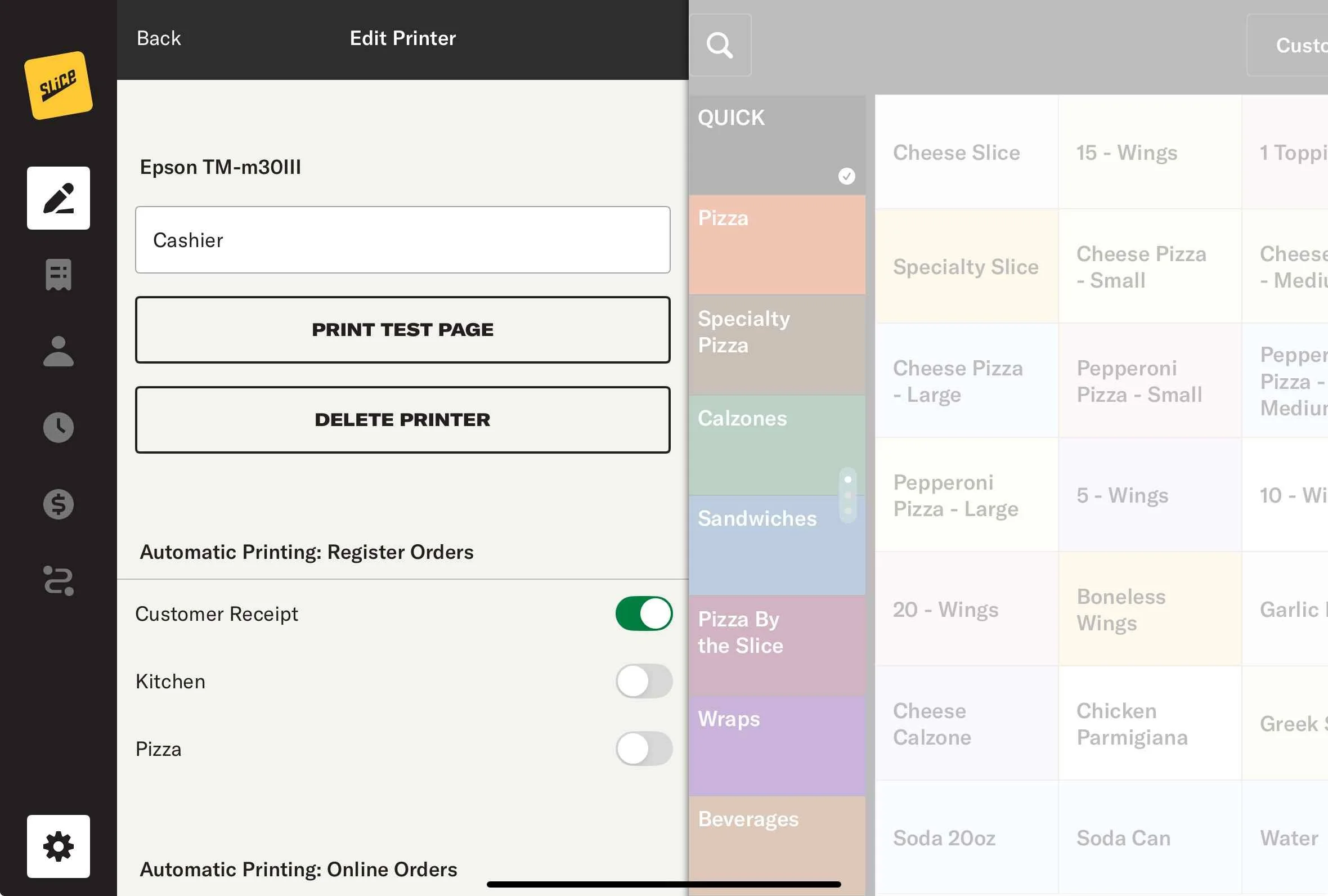
2. (Optional) Enter a name like Customer Receipt, Cashier, or Slice to help you recognize the printer.
3. Print a test page to confirm the printer is working properly.

4. Toggle on Automatic Printing: Online Orders for either Customer Receipts or Kitchen Tickets based on your needs.
- Customer Receipts include all customer and financial information.
- Kitchen Tickets only display items and relevant kitchen details by default. You can adjust what appears in the Kitchen Ticket settings.
5. Enable Automatic Printing: Third-Party Orders if you use third-party integration to ensure those orders also print.
If you do not see a printer, follow these steps:

1. Check the WiFi connection – Ensure your iPad and printer are connected to the same network.

2. Confirm netowrk permissions – Go to the iPad Settings, find the Register App, and make sure it has permission to find devices through the Local Network.
Reporting Settings

The Reporting Setting allows you to adjust the font size of the Sales Summary Report and Delivery Management reports that print from your customer receipt printer. Slide the font size and hit save.
Payment Terminals

The Payment Terminals screen allows you to set a defualt card reader for orders taken on this iPad. Swipe left to set the default reader.
Idle Screen Settings

The Idle Screen Settings allow you to control when the screen transitions to the black notification screen. This is only available if you are not using Employee Permissions.
Idle Screen Timeout: Set how long the iPad should remain active before switching to the black idle screen.
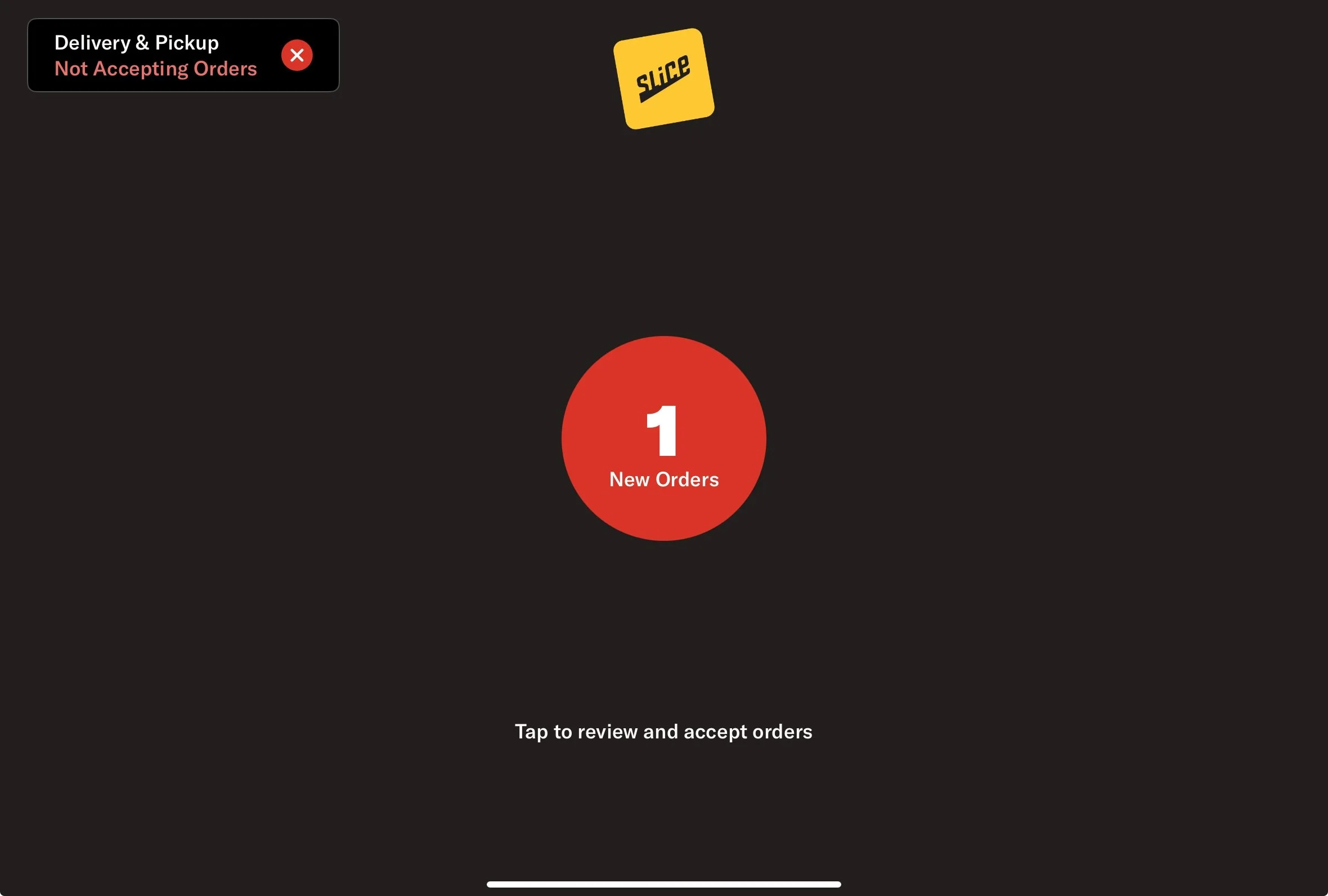
Hide Idle Screen when 0 New Orders: Enable this toggle to prevent the idle screen from appearing unless a new order is awaiting confirmation.
Order Settings

The Order Settings page lets you customize how you receive and manage incoming orders. Here’s what you can adjust:
Visual New Order Alerts: Enables a pop-up notification when new online orders arrive. We recommend keeping this on to avoid missing orders.

Auto-Confirm Orders: Allows Slice and third-party orders to be automatically confirmed. You can enable this separately for each order type.

New Order Alert Sound: Lets you select an audible notification for new orders.

New Order Alert Sound Frequency: Determines how often the alert sound repeats when an order arrives
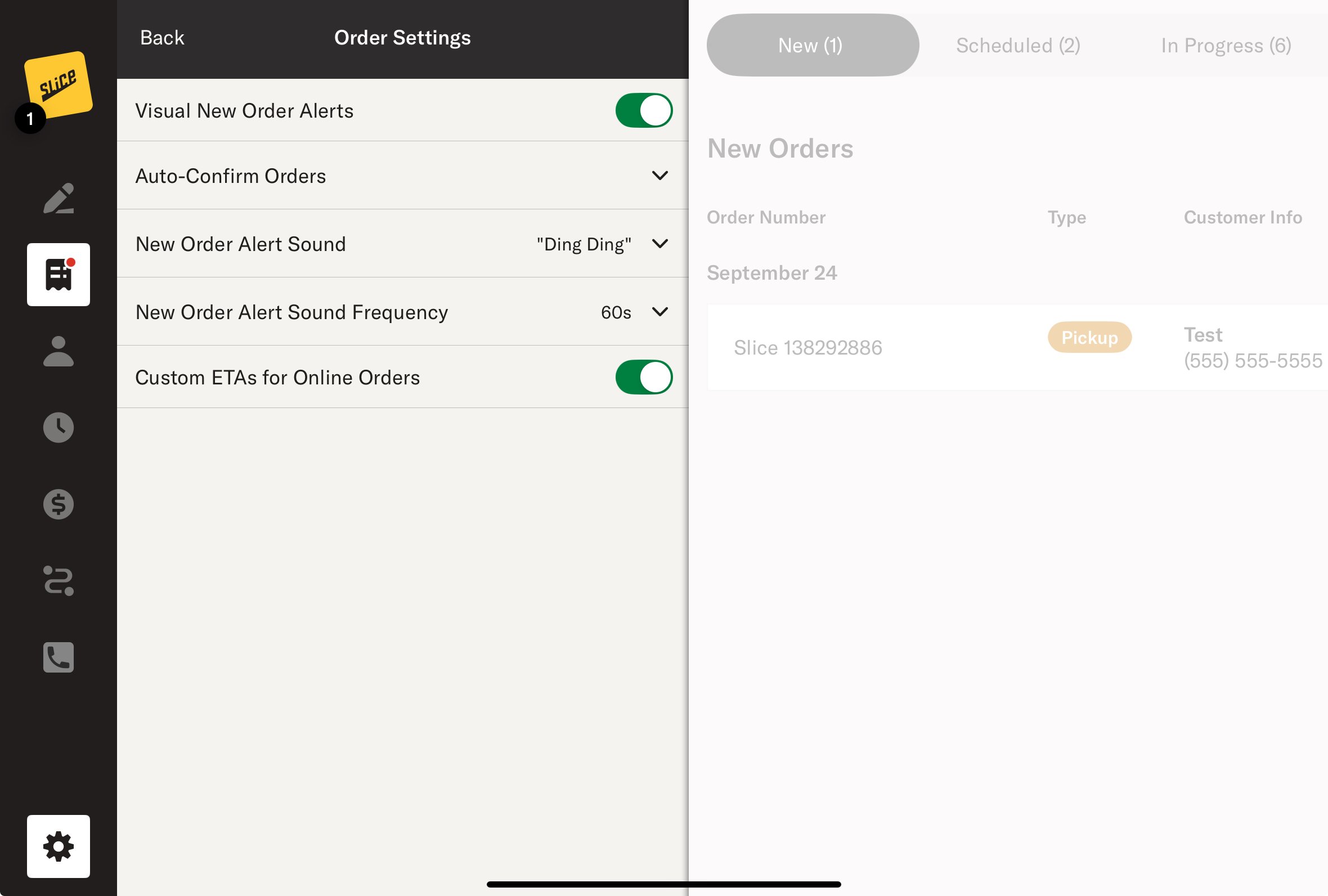
Custom ETAs for Online Orders: Allows your shop to adjust prep times in one- or five-minute increments when confirming Slice Online Orders. Pickup ETAs must stay between 10 and 90 minutes, and delivery ETAs must stay between 20 and 120 minutes.

Flex Delivery

The Flex Delivery setting lets you switch between using your in-house drivers and our delivery partners for Slice online delivery orders. If you don’t see this option, contact our support at (888) 974-9928 to make sure your shop is set up for Slice Delivery.
Outsource delivery orders: Toggle this setting on to have our partners deliver your Slice orders.

Toggle it off for your in-house team to handle deliveries.

What’s New

What’s New: This page provides a link to the Slice Knowledge Hub’s What’s New section, where you can keep track of new features and learn how they work. It’s a quick way to stay up to date on updates to the Register and other tools.